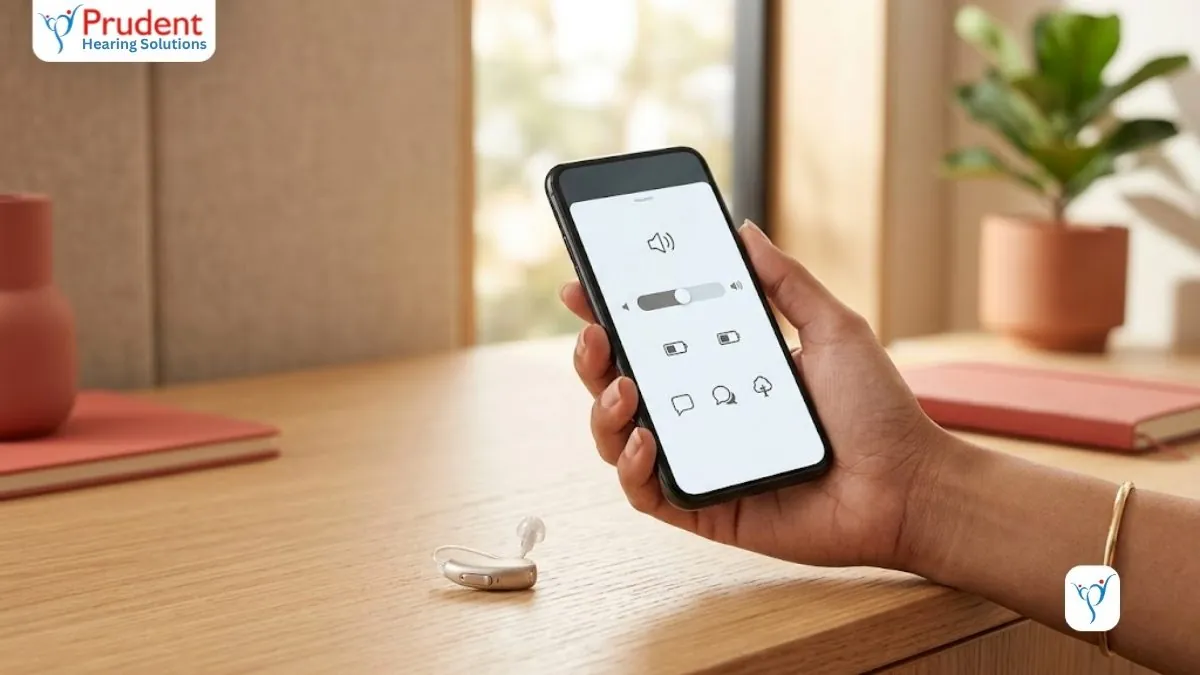
Connect Signia hearing aids to your phone: Made-for-iPhone streaming, Android ASHA version rules, the Signia app, pairing steps and how to reset.
Your hearing aids are no longer just tiny amplifiers sitting behind your ear. A modern Signia aid can stream a phone call straight into both ears, let you nudge the volume from an app on the way home, and even offer a Signia Assistant inside that app you can ask for help. But the question we hear most often at the clinic is simple: will it actually work with my phone? The honest answer is that it usually does, with one real caveat on the Android side. This guide walks through exactly how Signia hearing aids connect to iPhone and Android, what the app needs, how to pair step by step, and what to do when the connection drops.
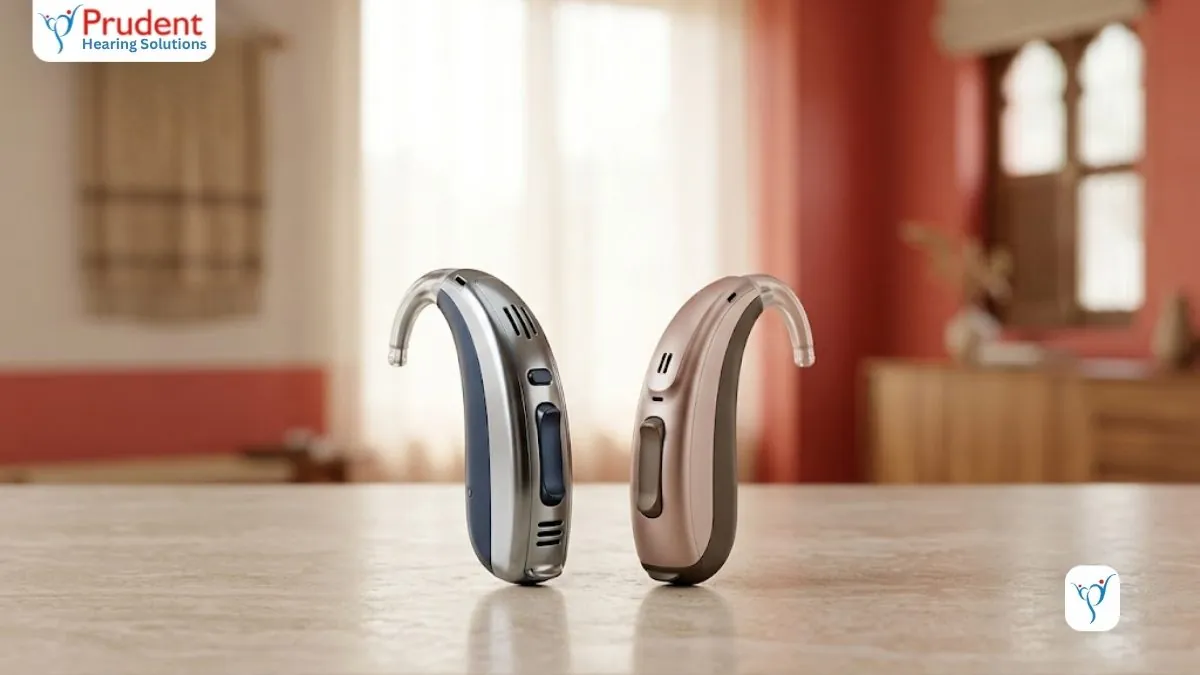
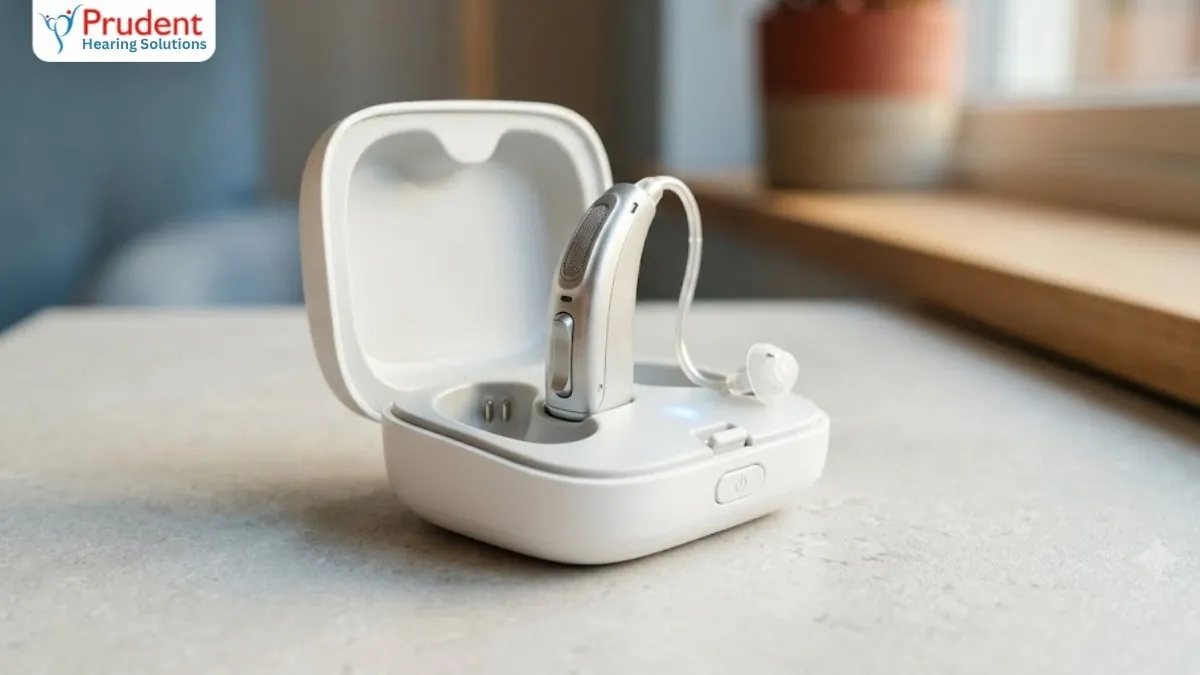
A quick note on the name first. Signia is the German brand from WS Audiology, and it is the modern successor to Siemens hearing aids (the line went Siemens to Sivantos to Signia). If you have seen it written as 'Insignia', that is simply a common misspelling of Signia. Today's popular models include the Pure Charge&Go rechargeable RIC, the sturdier Motion Charge&Go, the slim Styletto, the near-invisible Silk, and the custom Insio. Nearly all current wireless models can talk to a phone, but how smoothly depends on the phone as much as on the aid.
How Signia hearing aids connect to a phone
There are three separate things people often lump together, and it helps to keep them apart. First, direct audio streaming, which sends call and media sound from the phone into your ears. Second, remote control, which lets you change volume and programs from the app. Third, the Signia app itself, which also carries features like the Signia Assistant. On iPhone, all three usually work over Apple's Made-for-iPhone system. On Android, streaming uses a different standard called ASHA, and that is where compatibility gets patchy. Remote control through the app works far more widely than full audio streaming, so even if your Android phone cannot stream, you can very likely still use the app to adjust your aids.
Do Signia hearing aids work with iPhone?
Yes, and this is the smoothest path. Most current Signia models are Made-for-iPhone (MFi), which means recent iPhones on a reasonably up-to-date iOS can stream phone calls and audio directly into the hearing aids without any extra clip-on device. You get the sound in both ears, and you control everything from Settings and the Signia app. As a rule, the newer your iPhone and iOS, the better this works. Signia's newest platforms are also moving toward Bluetooth LE Audio and Auracast, the next-generation standards that both iPhone and Android are adopting, so direct streaming is only becoming more universal over time.
Can I use Signia hearing aids with my Android phone?
Often yes, but this is the honest part of the story. Direct streaming to Android uses Google's ASHA protocol (Audio Streaming for Hearing Aids). For it to work, three things all have to line up: your Signia model has to support ASHA, your phone has to support ASHA, and your Android version has to be new enough. The catch is that not every Android phone implements ASHA, even when the Android version is recent. A few large manufacturers have historically not shipped it at all, so a brand-new flagship from the 'wrong' maker can stream worse than an older phone from a supported one. This is why we never promise Android streaming over the phone or by model name alone. Bring your actual handset to the clinic and we will pair it and test it in front of you before you decide.
What Android version do I need for Signia hearing aids?
As a general rule, direct ASHA streaming wants Android 10 or newer, and Signia recommends being on the latest version your phone will run for the most stable performance; the newer Signia platforms often push that expectation to Android 11 and above. But the version number is only half the answer. Because ASHA support also depends on the specific phone model, two handsets on the same Android version can behave differently. Treat the version as a minimum to clear, not a guarantee, and always confirm your exact model.
Is the Signia app compatible with older Android versions?
The Signia app itself is more forgiving than streaming. It generally installs on older Android versions than direct streaming needs, so an older phone can often still run the app for remote control, program changes and the Signia Assistant even when it cannot stream call audio. That said, very old phones eventually fall off the supported list as the app updates, and features like the Assistant work best on a reasonably modern phone. If you are on an ageing handset, the safest move is to check the app in the store and test it with your aids at the clinic rather than assume.
How do I connect Signia hearing aids to my smartphone?
The overall flow is the same on both platforms: install the app, put the aids into pairing mode by restarting them, then let the phone find them. The small details differ between iPhone and Android.
Pairing on an iPhone
- Turn Bluetooth on, then open Settings, Accessibility, Hearing Devices (called MFi Hearing Devices on older iPhones).
- Restart your hearing aids so they enter pairing mode: on rechargeable models, put them in the charger and take them out again; on battery models, open and close the battery doors.
- Wait for your name and the aids to appear under Hearing Devices, tap them, and accept the pairing prompt for each aid.
- Install the Signia app from the App Store and follow its setup so the app links to the aids you just paired.
Pairing on an Android phone
- Install the Signia app from the Google Play Store first, and keep phone Bluetooth switched on.
- Restart your hearing aids the same way (out of the charger, or open and close the battery doors) so they are ready to pair.
- Open the app and follow its guided setup; it will search for and connect to your aids.
- If the app cannot find them, confirm your phone actually supports ASHA before troubleshooting further, since an unsupported handset is the usual reason nothing appears.
Installing and using the Signia app
Once paired, the Signia app becomes your day-to-day remote. You can raise or lower volume, switch between the programs your audiologist has set, and tune the balance for noisy places. Signia's signature features live here too: Own Voice Processing (OVP) helps your own voice sound natural rather than boomy, the Augmented Focus and Integrated Xperience platform works to lift speech out of background noise, and the Signia Assistant is an in-app AI helper you can ask when a situation sounds wrong, suggesting an adjustment on the spot. None of this replaces your fitting appointments, but it lets you fine-tune between visits.
How do I reset my Signia hearing aid?
Most connection problems are fixed by a simple restart, not a factory reset. Start with the gentlest step and work up:
- Restart the aids: rechargeable models go back in the charger for a few seconds and out again; battery models just need the battery doors opened and closed. This alone clears most glitches.
- On iPhone, if they still will not connect, go to Settings, Accessibility, Hearing Devices, tap your aids and choose Forget this device, then restart the aids and pair again from scratch.
- Reset the app connection: in the Signia app, open the menu (three lines, top left), then Settings, App settings, Set up the app, confirm the prompt, and follow the on-screen steps to reconnect.
- Toggle phone Bluetooth off and on, and make sure both your phone software and the Signia app are up to date.
A true factory reset of the hearing aids themselves is best left to your audiologist, because it wipes the personalised settings from your fitting. If a restart and re-pairing do not fix it, that is the point to call the clinic rather than keep resetting. Remember too that Signia's IP68 rating means the aids resist dust and sweat but are not for swimming or submersion, and moisture on the charger contacts can still cause odd behaviour, so wipe everything dry before charging.
Buying and setting up Signia in India
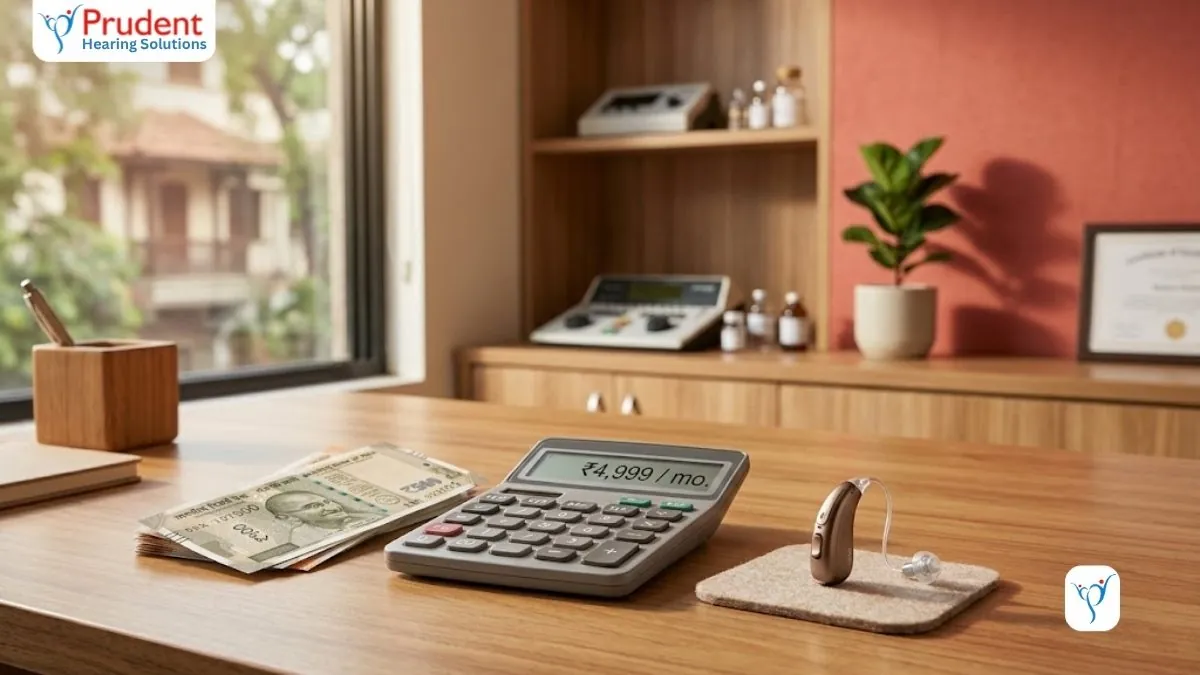
In India, Signia aids are sold and fitted through audiology clinics rather than shipped direct from the company, and that is a good thing for connectivity: the clinic pairs your phone, loads your prescription, and shows you the app before you leave. Expect a manufacturer warranty of roughly one to two years through Signia India or the dealer, plus ongoing clinic service. A reputable clinic will also offer a trial, often in the clinic, so you can test streaming with your own phone first. Set honest expectations on cost and cover: health insurance in India rarely pays for hearing aids apart from occasional employer or CGHS schemes. Per device, entry models run roughly Rs 15,000-30,000, mid-range Rs 35,000-80,000, and premium Rs 1,20,000-2,50,000 and up, with the final figure depending on your hearing test.
It also helps to remember what these devices do. Hearing aids manage sensorineural hearing loss; they do not cure it, and it usually takes about two to four weeks for your brain to settle in, with a follow-up visit or two for fine-tuning. A well cared for Signia aid typically serves you for about four to six years before replacement. The phone connection is a convenience layer on top of that core job of hearing better. If you are still weighing models, our guide to Signia hearing aids in India goes deeper, while separate guides on choosing a Bluetooth hearing aid, current hearing aid prices in India, and Signia care and troubleshooting cover the rest.
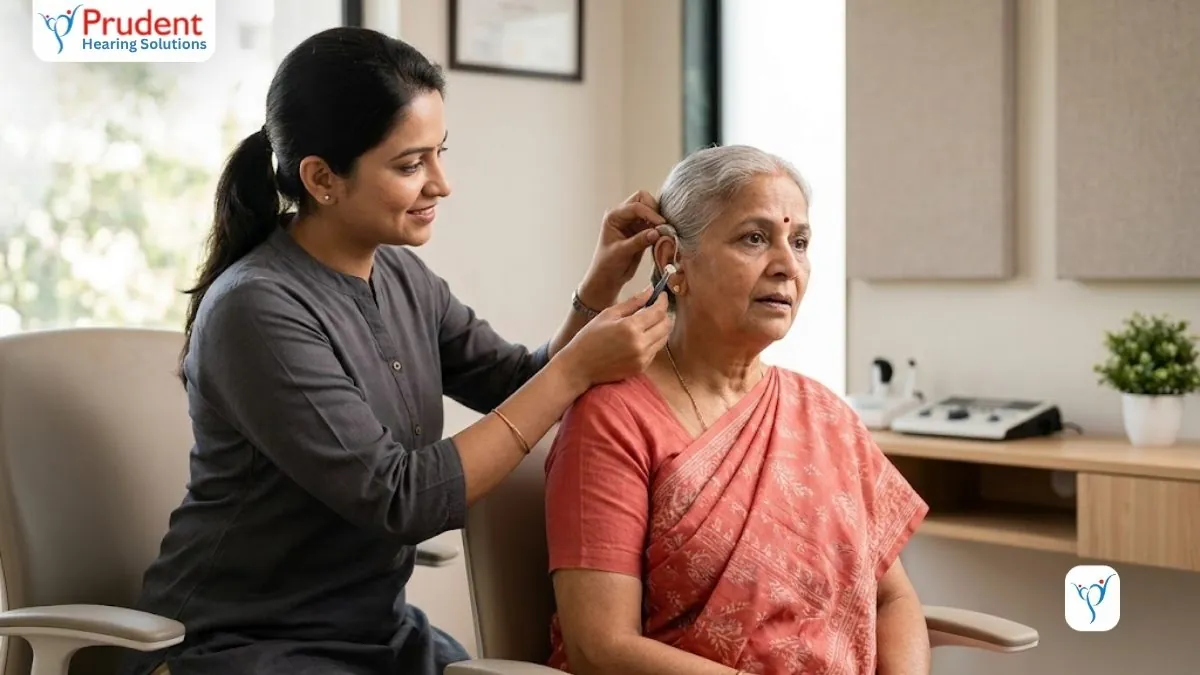
The surest way to know how well a Signia aid will work with your exact phone is to test it, not guess. Prudent Hearing Solutions is an RCI-registered clinic (established 2004) with offices in Pune (Viman Nagar), Delhi (Rohini and Green Park) and Bengaluru (Jayanagar). We fit, trial and service Signia, offer 0% EMI, and give you a free 45-minute hearing test where we will pair your own phone and show you the app before you commit. Call +91 9429690093 to book your free test.
Continue reading
Frequently asked questions
Can I use Signia hearing aids with my Android phone?
Often yes, but it varies. Direct streaming to Android uses Google's ASHA protocol, and it only works when your Signia model, your specific phone, and your Android version all support it. Not every Android phone implements ASHA even on a recent version, so a new flagship can sometimes stream worse than an older supported phone. The safest approach is to bring your handset to the clinic and have it paired and tested before you commit.
How do I connect Signia hearing aids to my smartphone?
The flow is similar on both platforms: install the Signia app, restart the aids to put them in pairing mode, then let the phone find them. On iPhone, open Settings, Accessibility, Hearing Devices, restart the aids (charger out, or open and close the battery doors), tap them when they appear, and accept the prompt. On Android, install the app first, keep Bluetooth on, restart the aids, and follow the app's guided setup. Finish by completing the app setup so it links to the paired aids.
Is the Signia app compatible with older Android versions?
The app is more forgiving than streaming and usually installs on older Android versions than direct streaming needs. That means an older phone can often still run the app for remote control, program changes and the Signia Assistant even if it cannot stream call audio. However, very old phones eventually drop off the supported list as the app updates, and the Assistant works best on a fairly modern phone. Check the app in the store and test it with your aids to be sure.
What Android version do I need for Signia hearing aids?
As a general rule, direct ASHA streaming wants Android 10 or newer, and Signia recommends running the latest version your phone supports for stability; newer platforms often expect Android 11 and above. But the version is only a minimum to clear, not a guarantee, because ASHA support also depends on the exact phone model. Two phones on the same Android version can behave differently, so always confirm your specific handset.
Do Signia hearing aids work with iPhone?
Yes, and it is the smoothest option. Most current Signia models are Made-for-iPhone (MFi), so recent iPhones on an up-to-date iOS can stream calls and audio directly into both aids with no extra clip-on device. You control everything from iPhone Settings and the Signia app. Newer Signia platforms are also adding Bluetooth LE Audio and Auracast, which will make direct streaming even more universal.
How do I reset my Signia hearing aid?
Start with a simple restart, which fixes most issues: put rechargeable aids back in the charger briefly, or open and close the battery doors on battery models. If they still will not connect on iPhone, choose Forget this device under Settings, Accessibility, Hearing Devices and pair again from scratch; on either platform you can also reset the app's connection from its App settings menu. A full factory reset of the aids is best left to your audiologist, because it erases your fitting, so call the clinic if a restart and re-pairing do not work.
Free consultation
Ready to hear the difference?
Book a free 45-minute hearing test at any Prudent Hearing clinic: no obligation, honest advice, expert audiologists.